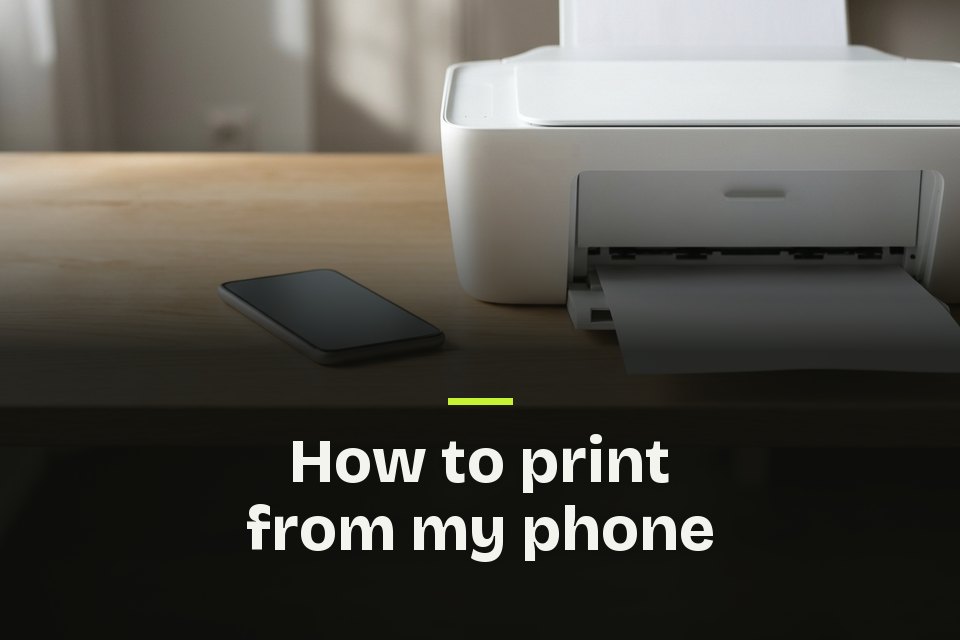
A boarding pass, a school form or a recipe is on your screen, and the printer is in the next room. If you typed how to print from my phone into a search bar, the good news is that the phone already knows how. iPhones print through AirPrint, and many Android phones come with a print service already installed. Put the phone and the printer on the same Wi-Fi network, tap Share or More, then tap Print.
Key Takeaways
- Put the phone and the printer on the same Wi-Fi network before anything else.
- On iPhone, tap Share or More, then Print, then pick an AirPrint printer.
- On Android, turn on a print service in Settings, then print from the Share or More menu.
- Gmail cannot print an email that was sent in confidential mode.
- With no Wi-Fi network, Android phones can use Wi-Fi Direct, and a Galaxy can use a USB adapter.
How to print from my phone in four steps
iPhones and Android phones follow the same basic pattern, whatever brand of printer sits on your desk.
- Connect the phone to the same Wi-Fi network as the printer.
- Open the email, photo, page or file you want on paper.
- Tap Share or the More menu, then tap Print.
- Choose your printer, set the number of copies and tap Print.
If Print is missing, the app may not support printing at all. Apple, Google and Samsung all say that not every app can print. In that case a screenshot still gets the page onto paper, the way the document section shows.
Print from an iPhone with AirPrint
Where to find it Share or More button > Print > No Printer Selected > your printer > Print
AirPrint is Apple's built-in way to print, and it needs no driver or extra app. It is built into most popular printer models, and Apple keeps a searchable list if you want to check yours. Depending on the app, the Print option sits behind the Share, More, Reply or Actions button. If you still do not see it, swipe up on the menu.
Tap No Printer Selected, choose the printer, then set the copies and pages. Tap Print in the upper right corner. Apple says AirPrint works over Wi-Fi or a wired network, but not with a printer that is linked to a computer over Bluetooth. I would print one short page first to confirm the connection, then send the long document.
Print from an Android phone
Where to find it Pixel, Settings > Connected devices > Connection preferences > Printing
Printing sits a few menus deep, like the settings in my list of hidden Android features. On a Pixel, that path lists the print services on the phone. Select one and turn it on, or tap Add service to set up another. Google notes that some of these steps need Android 14 or later. On a Samsung Galaxy, open Settings, search for Printing, then turn on Default Print Service and tap your printer in the list. If it is missing, the More options menu has Add printer, where you type the printer's IP address.
Mopria says its print service reaches more than 120 million certified printers, and it comes preinstalled on many Android phones. To print, open the app and tap Share then Print, or use the three dot More menu. On a Galaxy, tap Select printer, then All printers if yours is not listed. The down arrow opens paper size, color and orientation, so check it before a long job comes out on the wrong paper.
How to print an email from my phone
Where to find it Mail on iPhone, Reply button > Print
In Apple's Mail app, open the message, tap the Reply button, then tap Print. For an attachment or a picture, tap it to open it, tap the Share button, then choose Print.
In the Gmail app on iPhone or Android, open the email and tap More at the top right, then Print. If the message is part of a longer conversation, choose Print all to get every reply on paper. One catch is worth knowing. If the sender turned on Gmail's confidential mode, the app blocks printing of the text and the attachments, so ask for a regular copy instead.
How to print a document from my phone
Open the document in the app that holds it, then look for Share or More. Samsung notes that most apps print through Share and then Print, while some, like Word, have their own print menu. On an iPhone, the Print option can sit low in the Share sheet, so swipe up if you cannot see it.
When an app has no Print option at all, Google suggests a simple workaround. Take a screenshot of the screen and print the picture from your photos. That works for a ticket, a map or a text thread. Photos you plan to print are worth keeping safe too, and I cover that in how to back up photos. If you need the file later rather than now, Samsung phones offer Save as PDF in the Select printer list, so the page waits on the phone until a printer is near.
How do I print from my phone to my printer?
Most of the time the answer is the shared Wi-Fi network from the steps above. When the printer will not appear in the list, there are four other ways to reach it.
- On Android, Wi-Fi Direct connects the phone and the printer with no router at all, when both support it.
- Add printer by IP address works on Samsung phones when the printer does not appear on its own.
- A USB OTG adapter and a cable plug a USB printer into a Galaxy phone's charging port.
- Your printer maker's plug-in, from Google Play, adds a print service for printers the default one does not find.
Skip any older guide that tells you to set up Google Cloud Print. Google ended that service in January 2021, and no device can print through it now.
My Printing Shortcut
Set the printer up once, and every print after that is a few taps. Keep the screenshot trick in mind for any app that refuses to print, and on a Galaxy, keep Save as PDF for the pages you only might need.
FAQs about how to print from my phone
- Can I print photos from my phone?
- Yes. On an iPhone, Photos is one of the apps Apple names for AirPrint, so tap Share or More, then Print. On Android, Mopria's print service handles photos, web pages and documents.
- How do I print a web page from my phone?
- On an iPhone, Safari is one of the apps Apple names for AirPrint, so tap Share or More, then Print. On Android, Google says the app decides the path, so try the browser's Menu or More button, then Share and Print.
- How do I know if my printer works with my phone?
- Apple's AirPrint page has a search tool that lists AirPrint printers by brand and model. For Android, Mopria keeps a list of certified printers, and a printer that is missing from it may still work through its maker's plug-in.
- Do I need Bluetooth on to print from my phone?
- Usually Wi-Fi does the work. Samsung's guide asks you to keep Bluetooth on while the phone looks for printers, so turn it on if your printer does not appear on a Galaxy.
- Why does a print service ask for my location?
- On Android, Mopria explains that the system requires its print service to ask for your location so it can find Wi-Fi Direct printers near you. Allow it if you print over Wi-Fi Direct.
- Can I print on both sides of the page from my phone?
- On Android, Mopria's print service lets you set two-sided printing, along with color, copies, paper size and page range, on a Mopria certified printer. On an iPhone, Apple's print screen offers the number of copies and other options, like which pages to print.
- Why does my printer show up twice in the list?
- On Android, a printer can appear twice when more than one print service is turned on, or when its Wi-Fi Direct is on while it is also on your network. Mopria suggests keeping only one print service turned on, or turning off its search for Wi-Fi Direct printers.
- How do I cancel a print job on my iPhone?
- Open the App Switcher and tap Print Center, where a badge shows how many documents are waiting. Select the job and tap Cancel Printing.